How to Share a Grave Location With Relatives
Cemeteries are hard to navigate. Rows look alike, signs fade, and the one person who knew exactly where to go may no longer be there to show the way. For relatives who live far away and visit once every few years — or for grandchildren visiting for the first time — finding the right grave can take an hour, or not happen at all.
A memorial page with the resting place marked on a map solves that with one link.
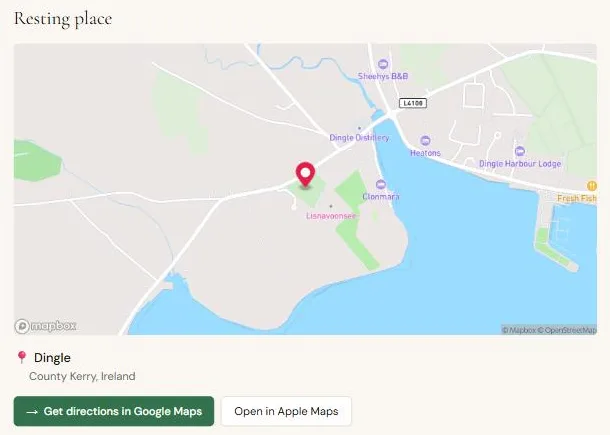
The resting place on our example page. The location is fictional.
Mark the place
When you create or edit a memorial on Pure Memorial, the Resting place section has a map:
- Search for the cemetery by name or address. The map moves there.
- Click the spot where the grave is to drop a pin.
- Drag the pin to adjust it. Zoom in as far as you can — at full zoom you can often see paths and rows.
The address shown on the page is filled in from the location, so visitors see the town and region under the map.
Get the pin right
A pin at the cemetery gate is better than nothing. A pin on the grave itself is much better. A few ways to get it exact:
- Ask someone who's been recently to drop a pin on their phone while standing at the grave, and send it to you. In Google Maps, that's a long press on the map; in Apple Maps, tap and hold. Then search for those coordinates on the memorial's map.
- Use the cemetery's own records. Many cemeteries have a plot number and a map; some have online search. Add the section and plot to the biography so visitors can double-check on site.
- Check it on satellite view in your maps app if the cemetery is large — paths and tree lines help you match the spot.
If you aren't sure of the exact grave yet, put the pin at the entrance and say so in the biography: "Plot 14, Section C — the entrance is marked on the map." You can move the pin later.
Share the link
Once the page is saved, visitors see:
- the map, which they can move and zoom;
- the address;
- Get directions buttons that open Google Maps or Apple Maps with the destination already set.
Send the page link to the family. It works on any phone without installing anything, and it will still work years from now — which is when it matters most, after people who knew the way are no longer there to explain it.
When there's no grave
Not every life ends with a grave: after cremation, a scattering at sea, or when the place simply isn't known. Tick No physical burial location and the page won't show a map or directions at all. You can still write about where the ashes were scattered, or a place that meant something to them, in the biography.
A note on privacy
The resting place is shown to everyone who can open the page. If the memorial is Public and verified, it may also appear in search results. Cemeteries are public places, so most families are comfortable sharing the location — but if you'd rather keep it within the family, make the page Unlisted and share the link only with people you trust. See public, unlisted and private memorials for the details.
Create a memorial and mark the place, or see the full step-by-step guide.